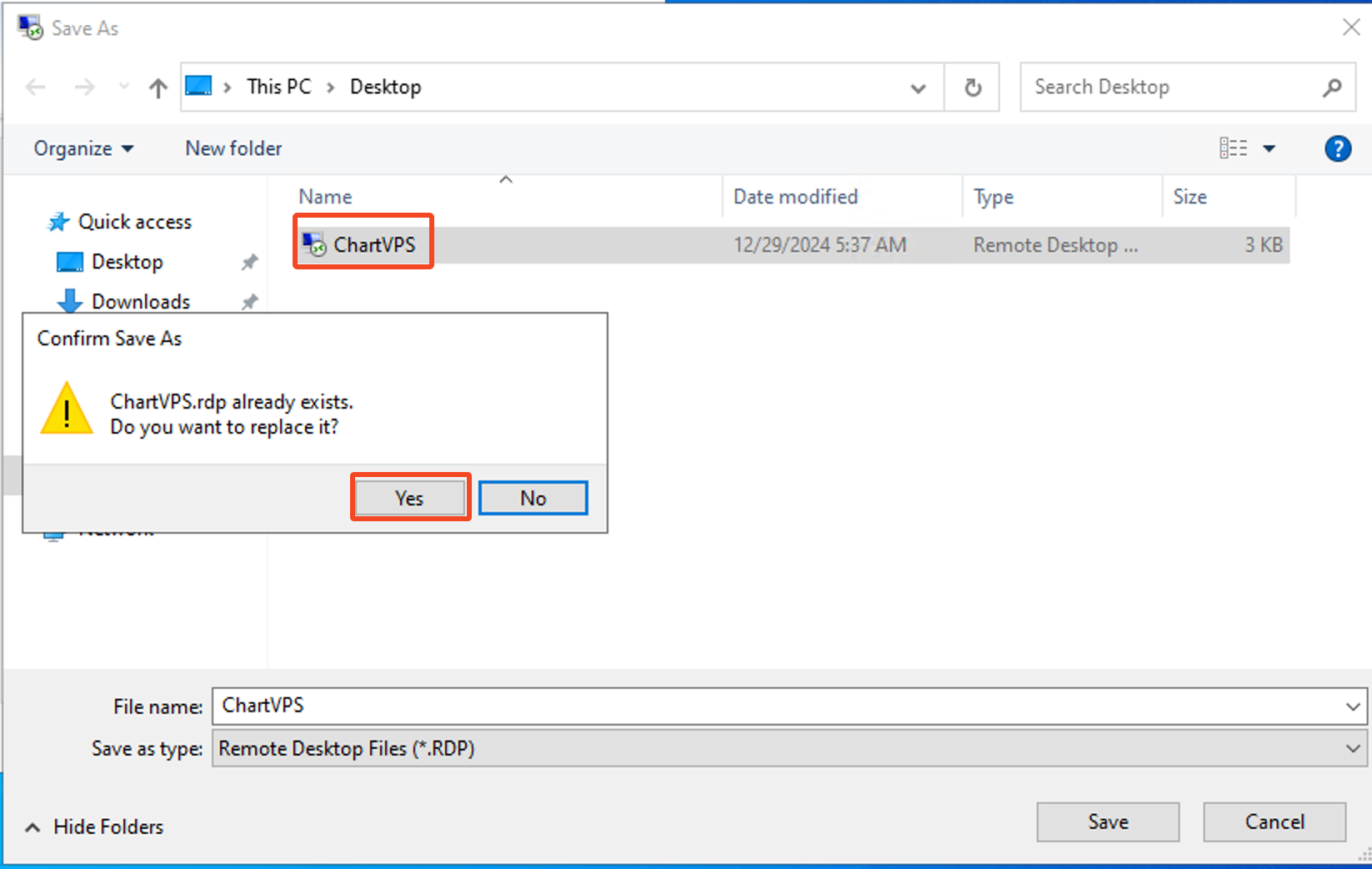
When using Remote Desktop Connection to connect to your VPS/Server, one option you have is to create a Desktop Shortcut that will have all your login information saved.
With that, you will be able to connect to your VPS/Server just by double-clicking the shortcut.
The process to create a desktop shortcut for your Remote Desktop Connection (RDC) that routes directly to your VPS/Server is very similar to connecting to the VPS using RDC and/or saving your Credentials
Note
1The first step is to navigate to the built-in app for remote connections. To launch it, click on Start, search for Remote Desktop Connection, and click on it when it pops up
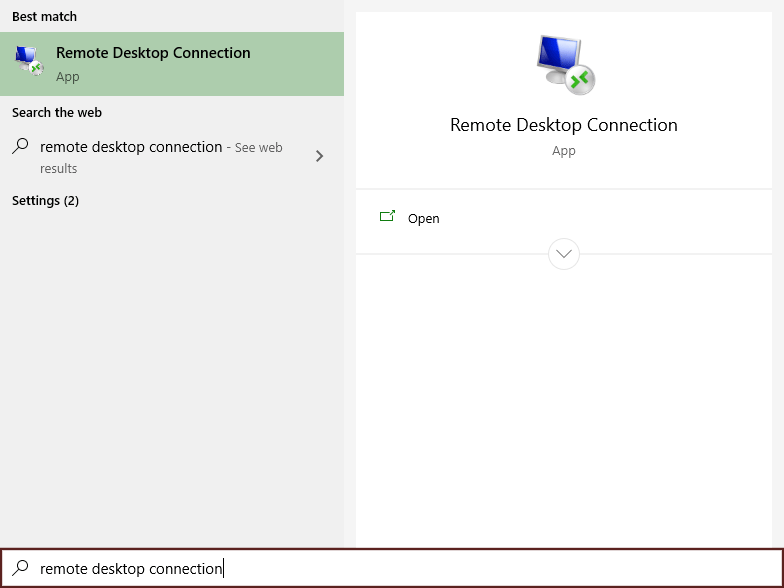
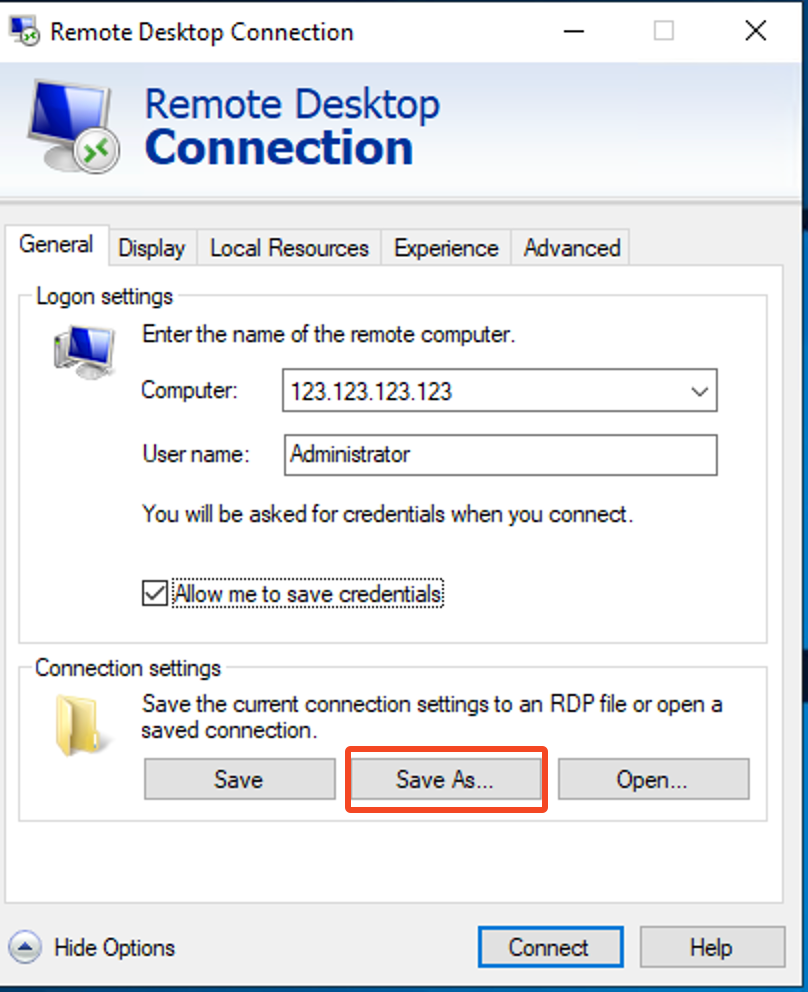
2Under Computer enter the IP Address of your VPS/Server (you can find the IP address of your VPS on the ChartVPS client portal under services)
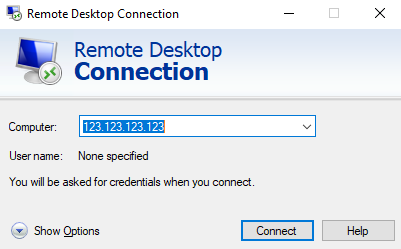
3Click Show Options
4Under User name enter the username you use to connect to your VPS (the login credentials assigned to you by ChartVPS at the start of your subscription, can be found on the ChartVPS client portal under services).
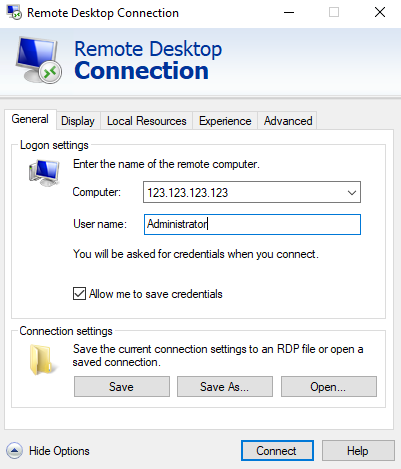
5Make sure that Allow me to save credentials box is checked, so that the login information is saved with the Shortcut we are creating – this way you don’t have to keep entering the password every time you wish to connect to your server or VPS
6To create the Shortcut click Save As so we can choose the location where we want it saved, and the name of the Shortcut.
7For the location choose Desktop on the left-hand panel (if you prefer to have the shortcut in a different location feel free to do so). As for the name one option you can put is “ChartVPS” but you can use any name that will be a useful label for your Remote Desktop Connection Shortcut.
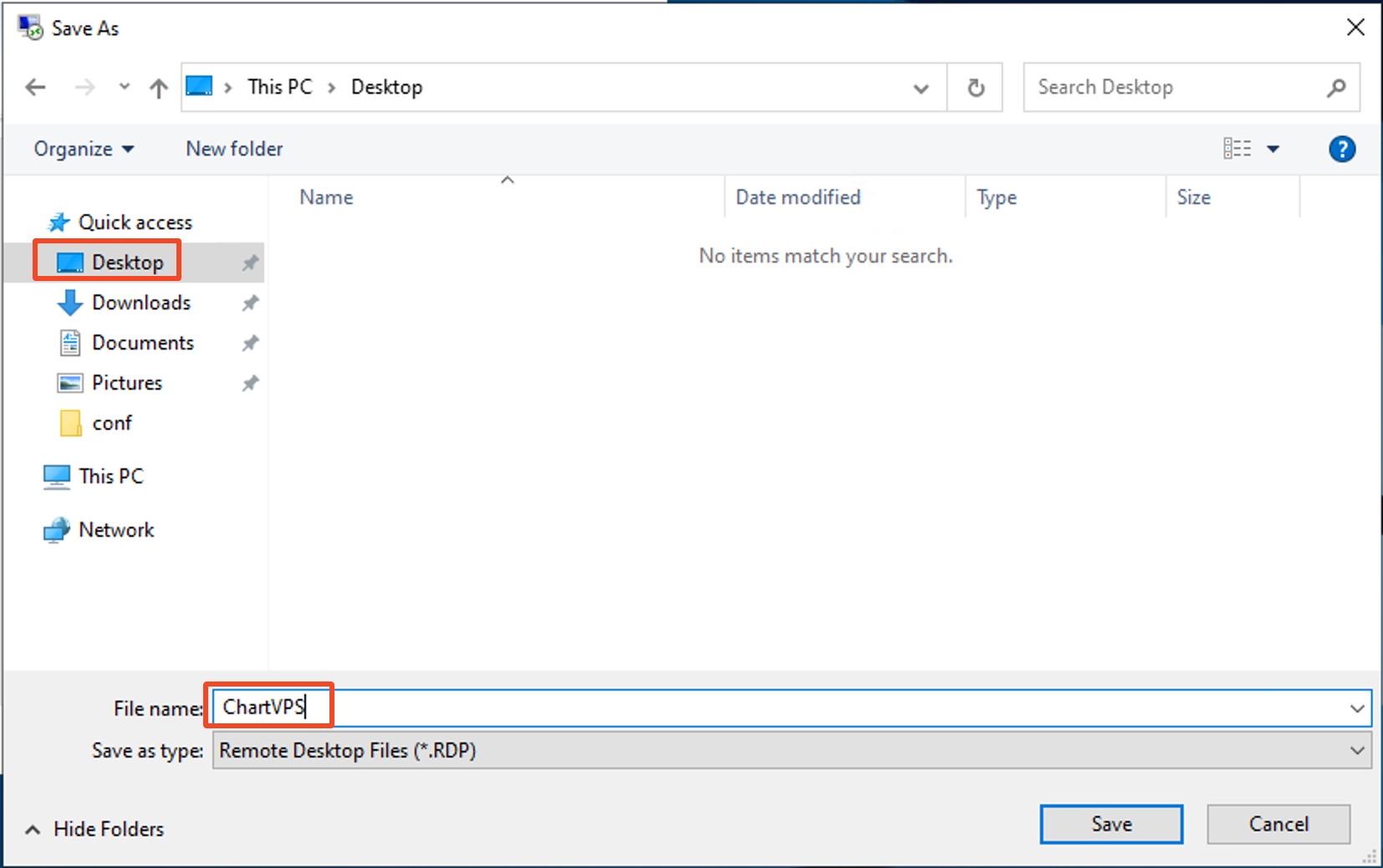
8After you have chosen a Location and Name for your Shortcut click Save
9We need to connect to the VPS/Server once to save the password. Therefore after saving the Shortcut click on Connect
10Enter the password you use to login to your VPS (the password assigned to you at the start of your subscription can be found on the ChartVPS portal, under Services) – make sure this is the server password and not the password for the ChartVPS portal account
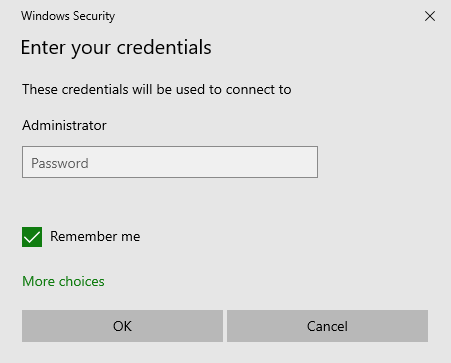
11In case you skipped step 5, you’ll have another chance to save the credentials for future connections by checking Remember Me – if you checked the box in 5, Remember Me will already be preselected
12Press OK – this will connect you to the server
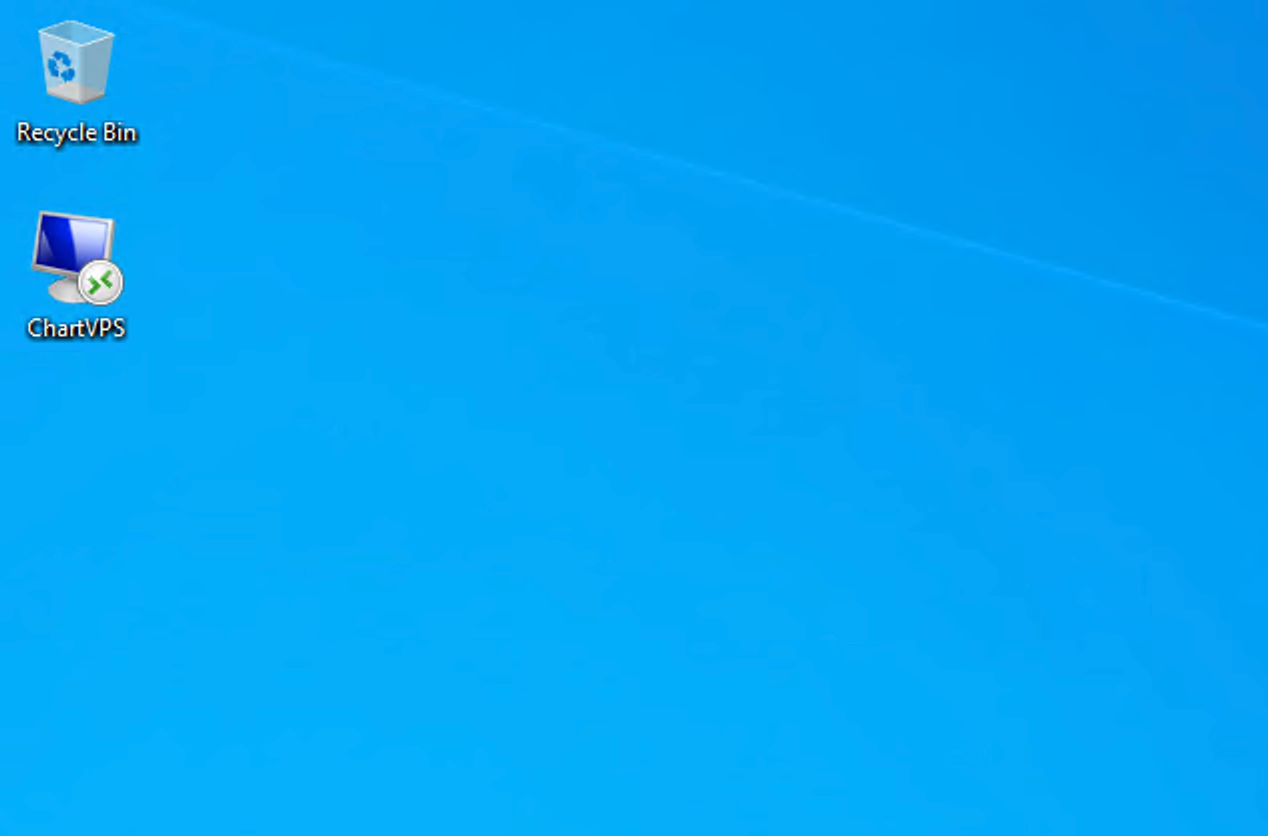
If you executed all the steps correctly now you will have a saved Shortcut on your Desktop (or other location of your Choice). Next time you wish to connect to the Server you only need to double click the Shortcut you Created.
Success
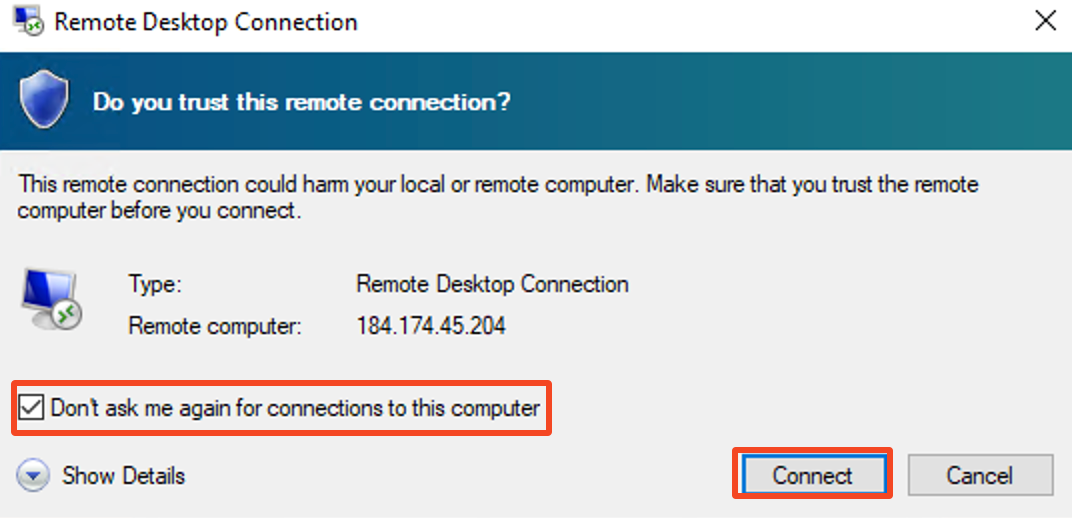
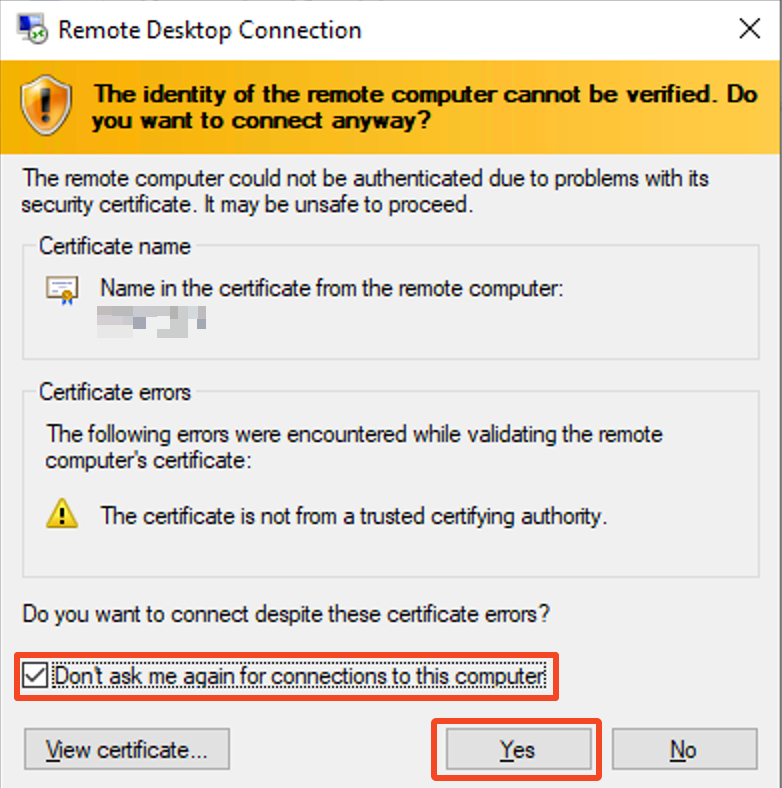
When you try to connect for the first time via the Shortcut, you may get two Dialog boxes to pop up. To not have them show up next time as well, make sure to check the box where it says “Don’t ask me again on this computer“, and click Connect or Yes to proceed to your VPS
Alert
If you ever change your login credentials such as your IP address, Username and/or Password you will need to update the Shortcut as well. To do this, just repeat all the steps, but when you get to the steps. 6, 7 and 8, make sure to select the already saved shortcut and override the save file.
Alert