
Our recommended, tried-and-tested, and free method of connecting to your ChartVPS server on Windows is via Microsoft’s Remote Desktop Connection app. It’s included with your PC and provides an easy way to connect to a server.
Tip
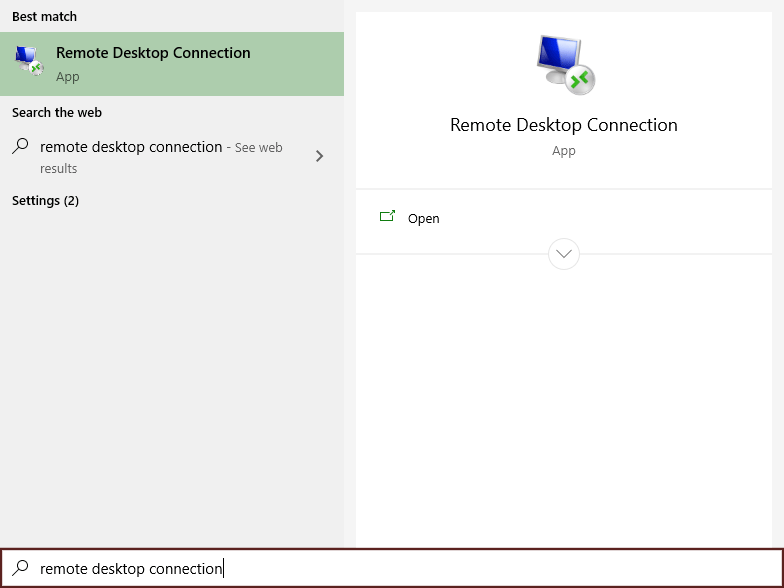
1All versions of Windows include a built-in app for remote connections. To launch it, click on Start, search for Remote Desktop Connection, and click on it when it pops up
2Under Computer enter the IP Address that was sent to you via email shortly after you signed up with ChartVPS
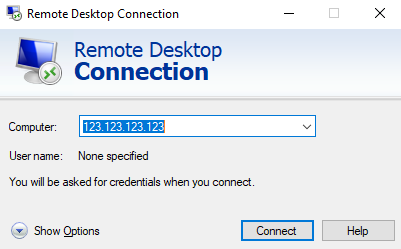
3Click Show Options
4Under User name enter the username that was sent you in the same email as above
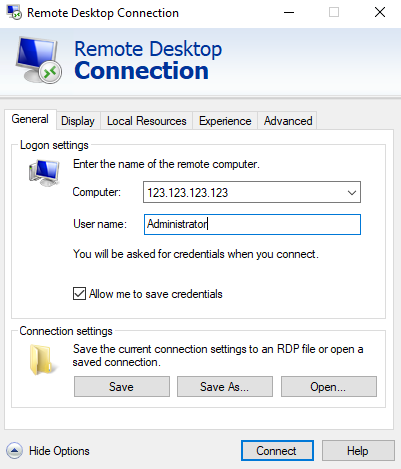
5Optionally, check the Allow me to save credentials box if you’d like the credentials saved – this way you don’t have to keep entering the password every time you wish to connect to your server or VPS
6Click on Connect
7Enter the password (included in the same email) – make sure this is the server password and not chartvps.com, the email includes 2 separate sets of login credentials
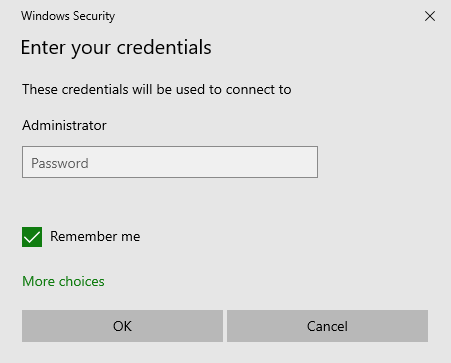
8In case you skipped step 5, you’ll have another chance to save the credentials for future connections by checking Remember Me – if you checked the box in 5, Remember Me will already be preselected
9Press OK – this will connect you to the server
10Enjoy!
Alternative: if you are having trouble with the above method, try downloading and running the Remote Desktop app from the Microsoft Store.
Success