Timezone sync issues can happen due to misconfigurations in time settings or problems with time synchronization services. These discrepancies can easily lead to missed or delayed trades, as they can make trades execute at the wrong time, which will affect profitability. Plus, incorrect timestamps in logs and trade data can certainly make it difficult to analyze strategies and track performance. Time-sensitive strategies can also fail if time sync issues take place, resulting in even more potential losses. Making sure that your trading environment is properly synchronized is essential for maintaining accuracy and optimizing overall performance.
Alert
So now you know why it’s so important to make sure you have accurate timezone synchronization! But how do we make sure everything works right? Simply follow the steps below:
Success
Check Current Time and Timezone
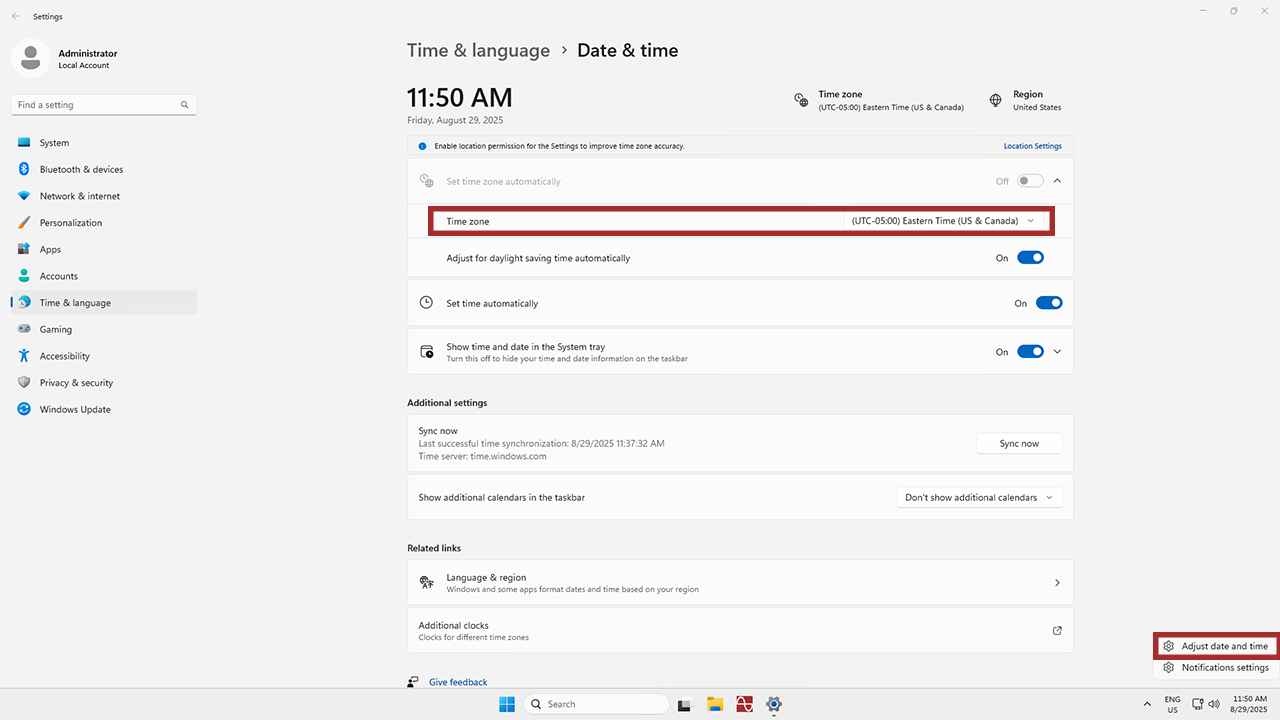
1Take a look at the bottom right-hand side of the screen. Right-click on the time and select Adjust date/time. This will show you the current date, time, and timezone settings. If the timezone isn’t right, you can also adjust it from this window.
Verify and Set Correct Time Zone
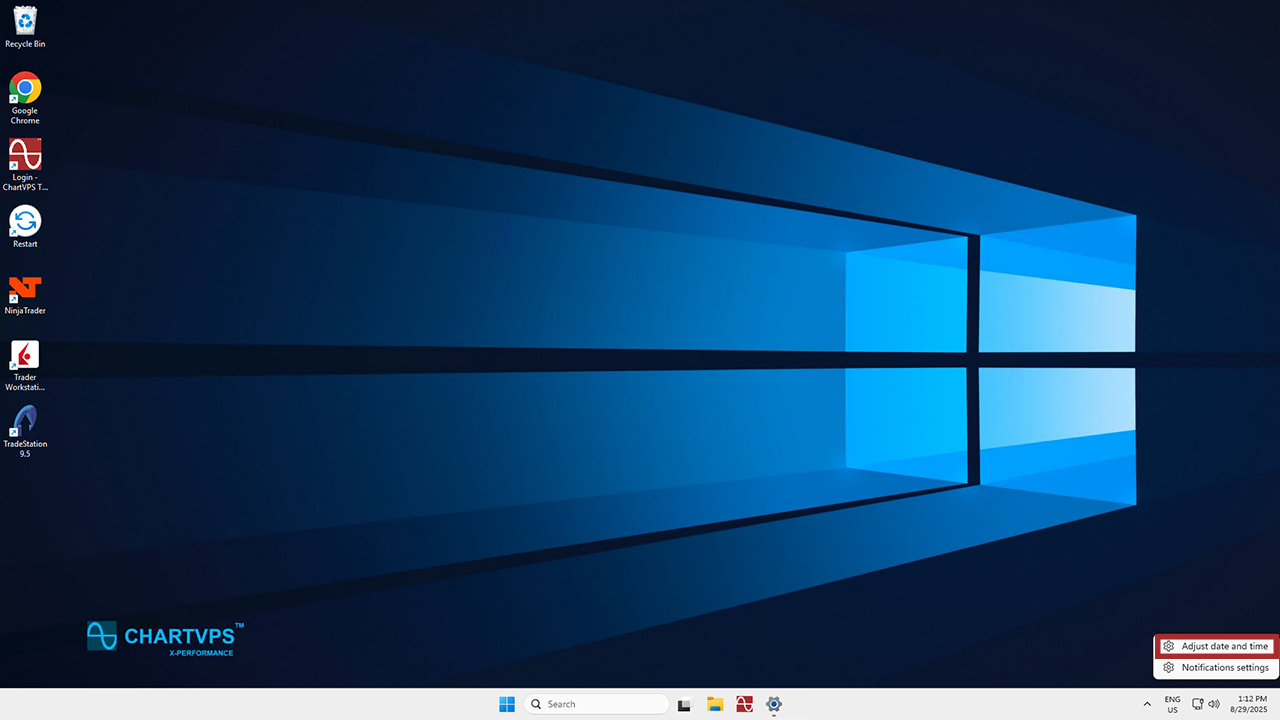
1If you closed the menu from the previous step, right-click on the clock again in the taskbar and select Adjust date/time.
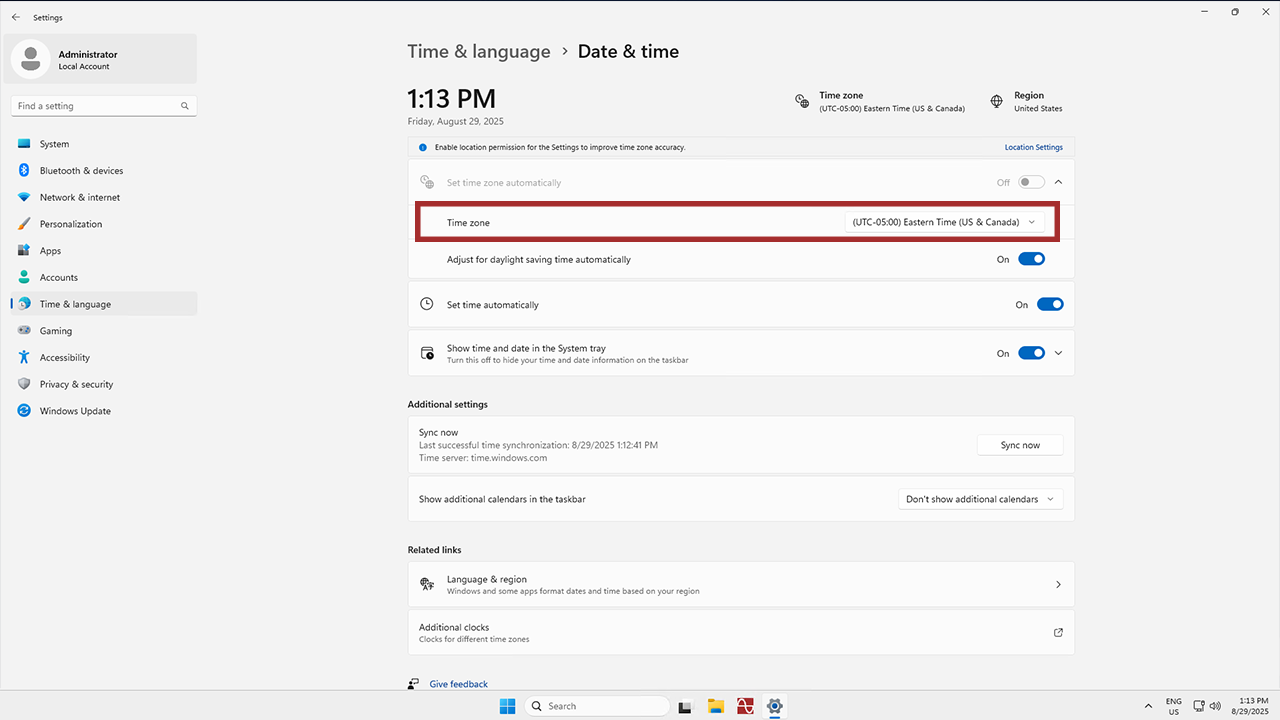
2In the Time zone section, make sure the set region is your own. If it’s not right, you can change it by selecting the right time zone from the dropdown menu.
Synchronize Time with an NTP Server
Windows Server 2025 can use the Windows Time Service (W32Time) to synchronize with an NTP (Network Time Protocol) server. Here’s how you can check if time synchronization is working:
Tip
1Go ahead and press Windows + R to open Run. Then, type “cmd” and press Enter to open the Command Prompt.
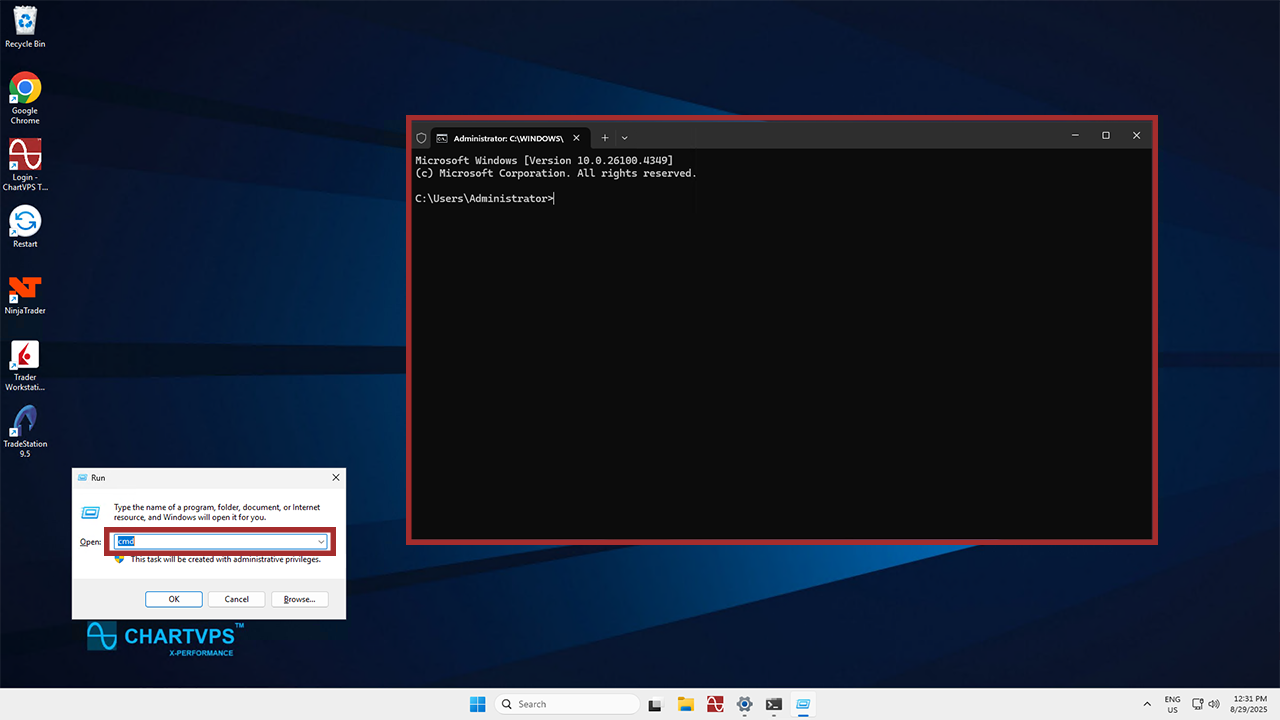
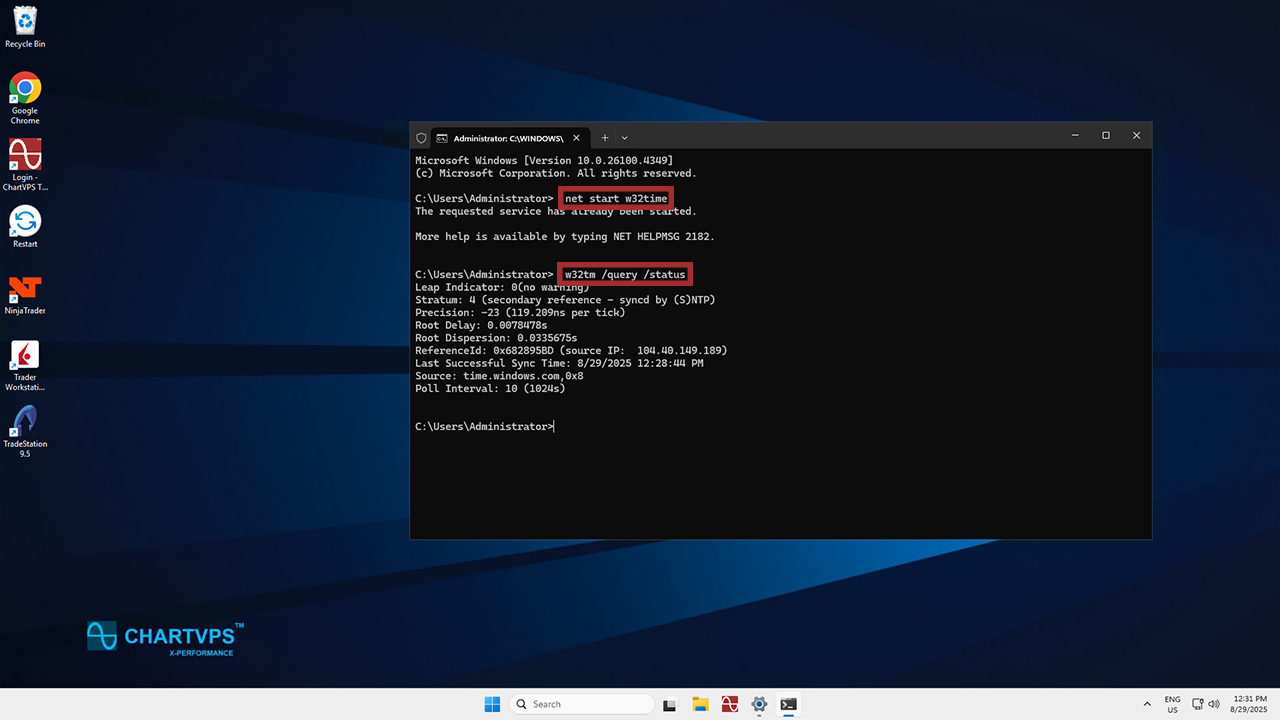
2Now that you’re in Command Prompt, type the following command and press Enter to check the current time service status:
net start w32time
w32tm /query /status- This’ll show if the server is syncing time properly with a time source.
If time sync is not working or you want to reconfigure it:
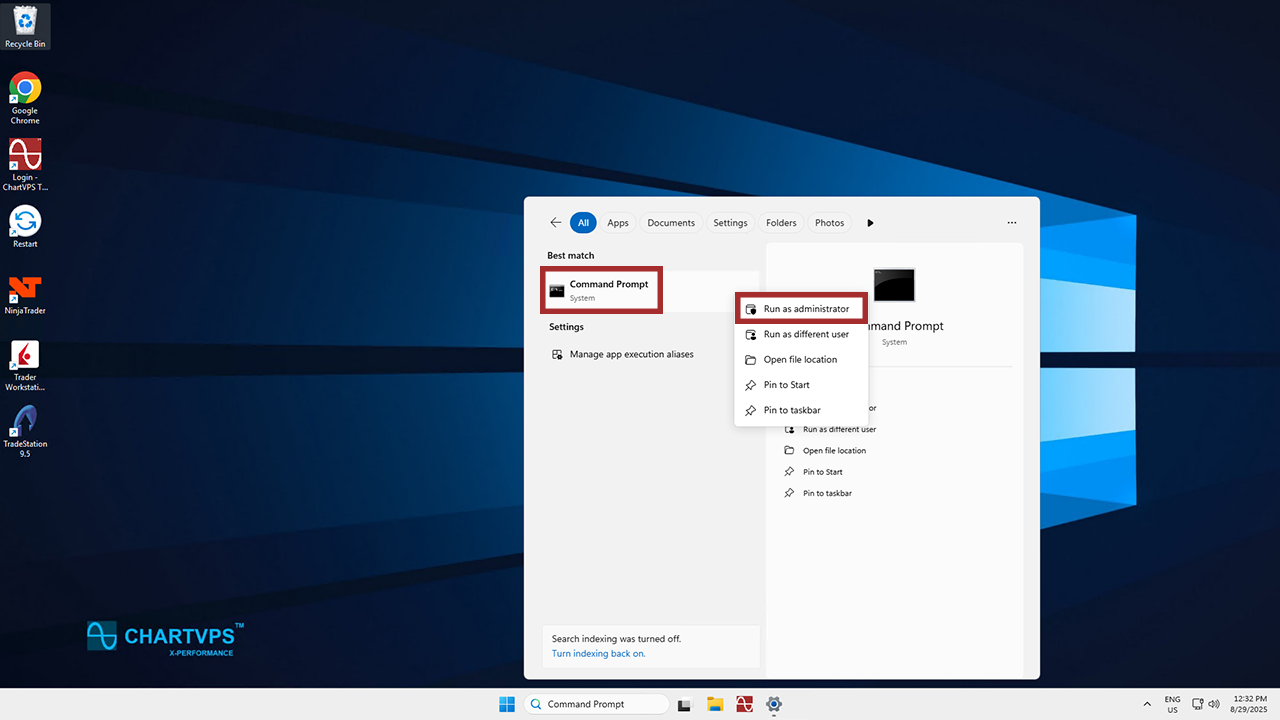
1This time, open Command Prompt as Administrator. To do that, search for “Command Prompt” in the Windows search bar, then right-click it and select Run as administrator.
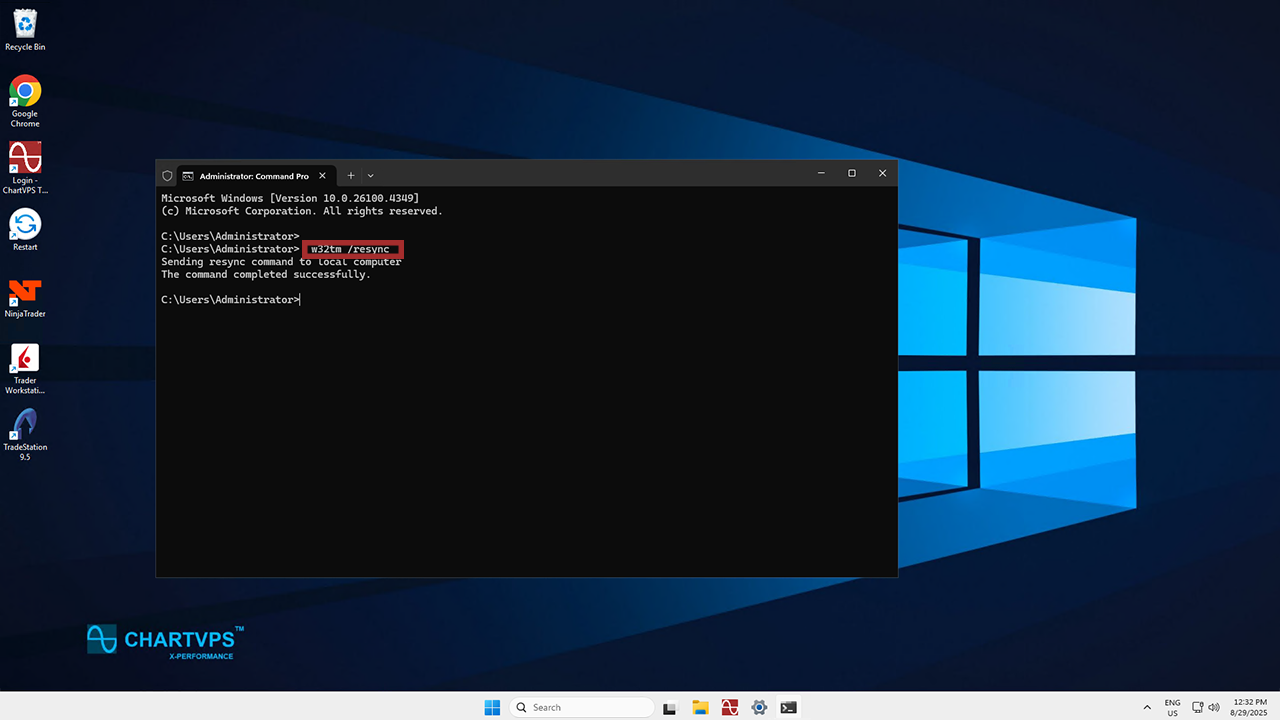
2To force a time sync, use this command:
w32tm /resync- This’ll attempt to immediately sync the time with the default time source. If it’s successful, you’ll see a message like “The command completed successfully.”
To configure the NTP settings (if needed):
1Like the last time, you’ve got to open Command Prompt as Administrator.
2To configure the time source (for example, by using time.windows.com), run the following command:
w32tm /config /manualpeerlist:"time.windows.com" /syncfromflags:manual /reliable:YES /update- You can replace “time.windows.com” with any NTP server if you prefer a different one.
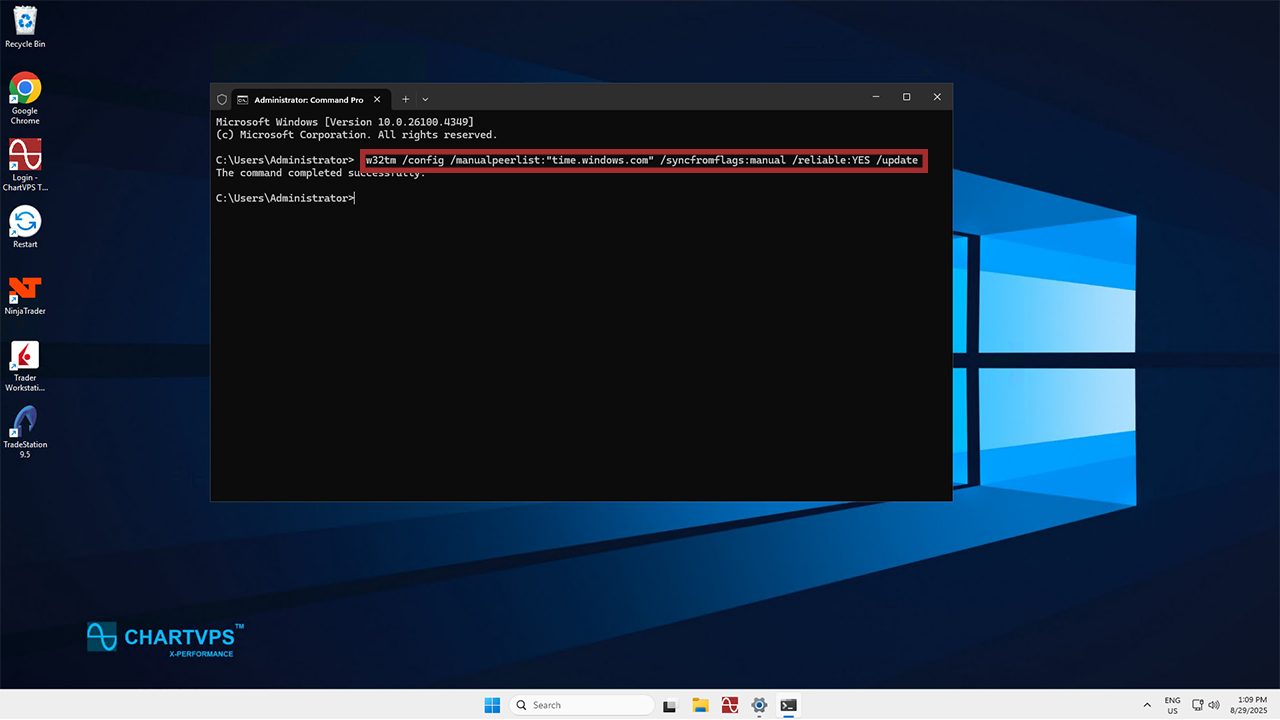
3Now you just need to restart the Windows Time service to apply the changes. Toss these commands into Command Prompt and hit Enter:
  net stop w32time
  net start w32time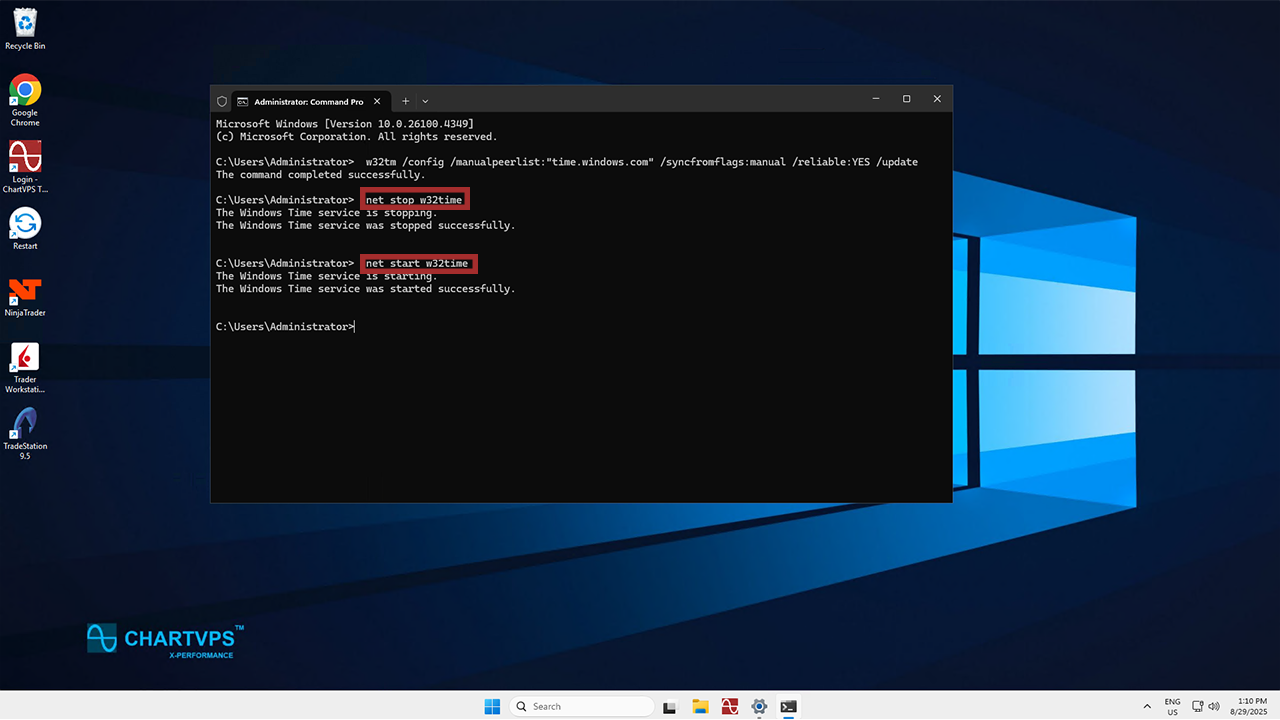
Ensure Time Service is Running
1Off the bat, press Windows + R, then type “services.msc” and press Enter to open the Services window.
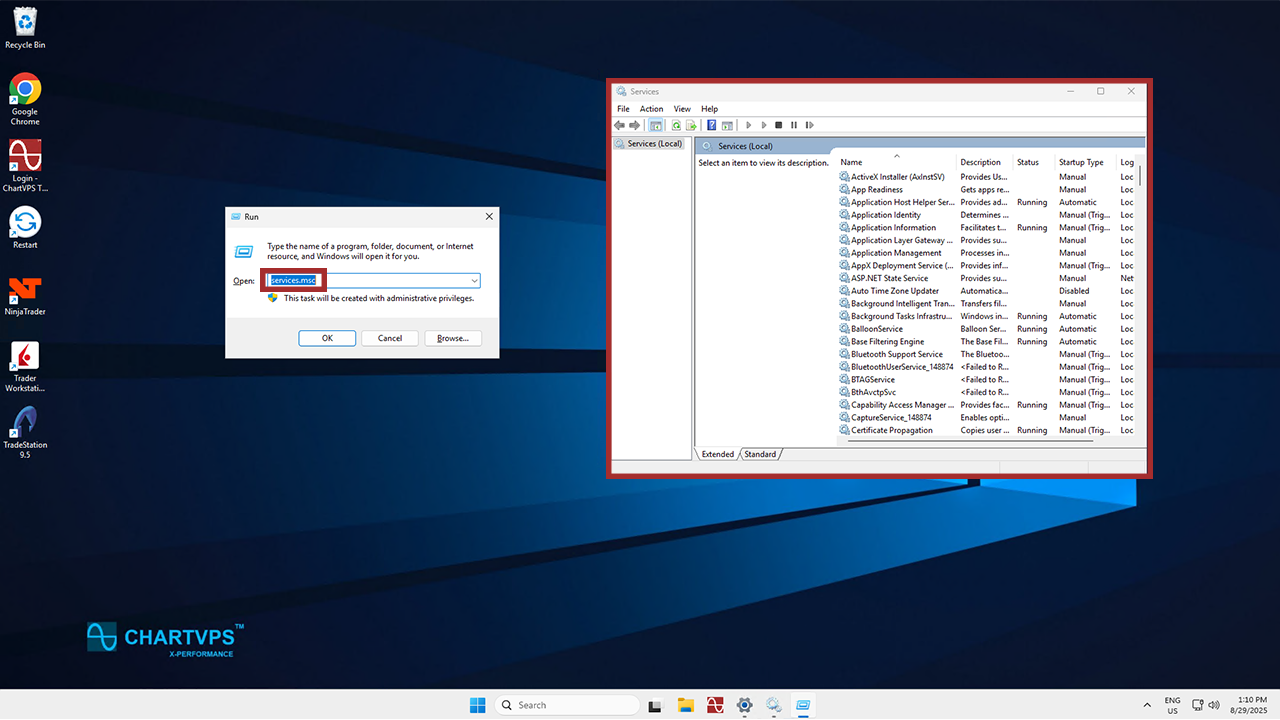
2Find Windows Time in the list of services.
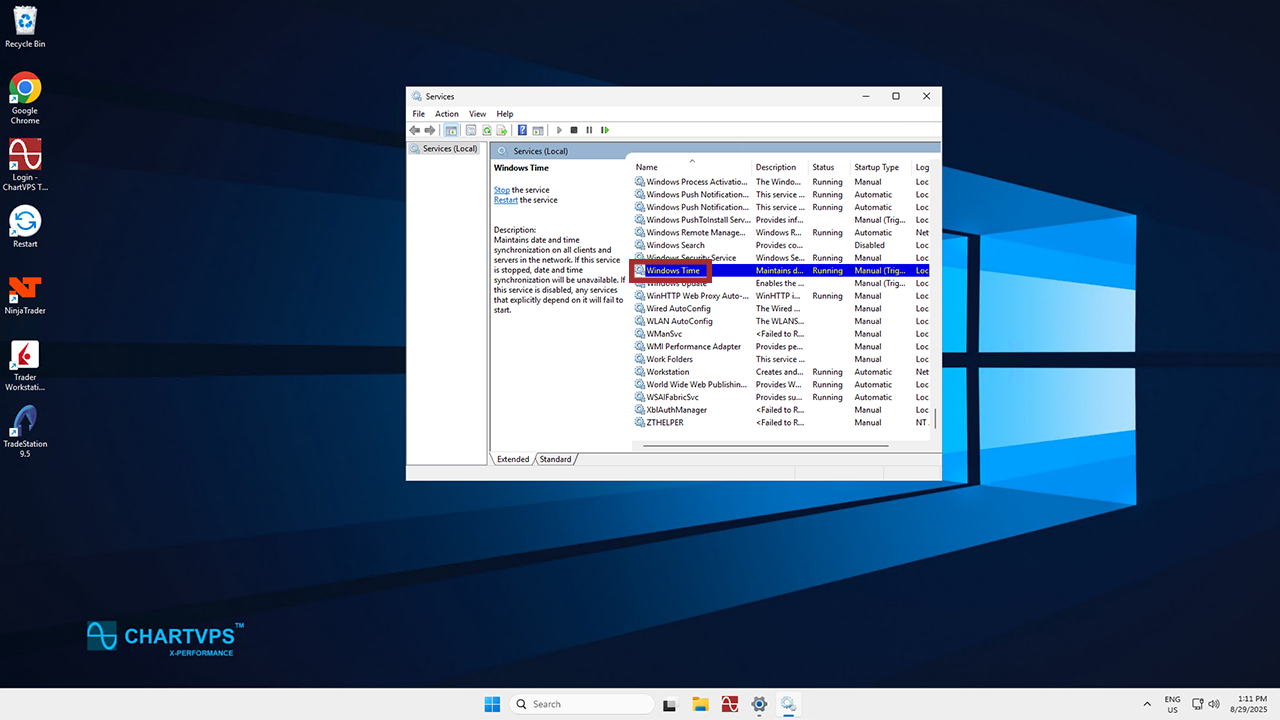
3When you’ve found it, right-click on Windows Time and select Properties.
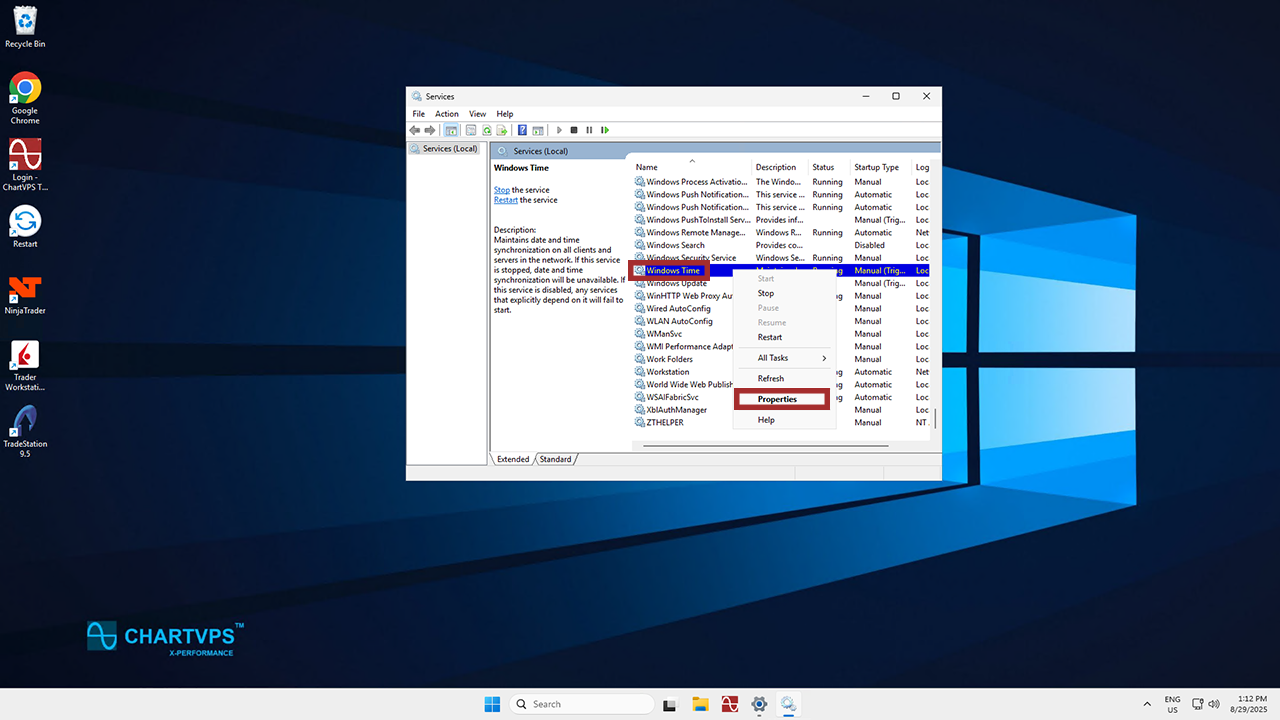
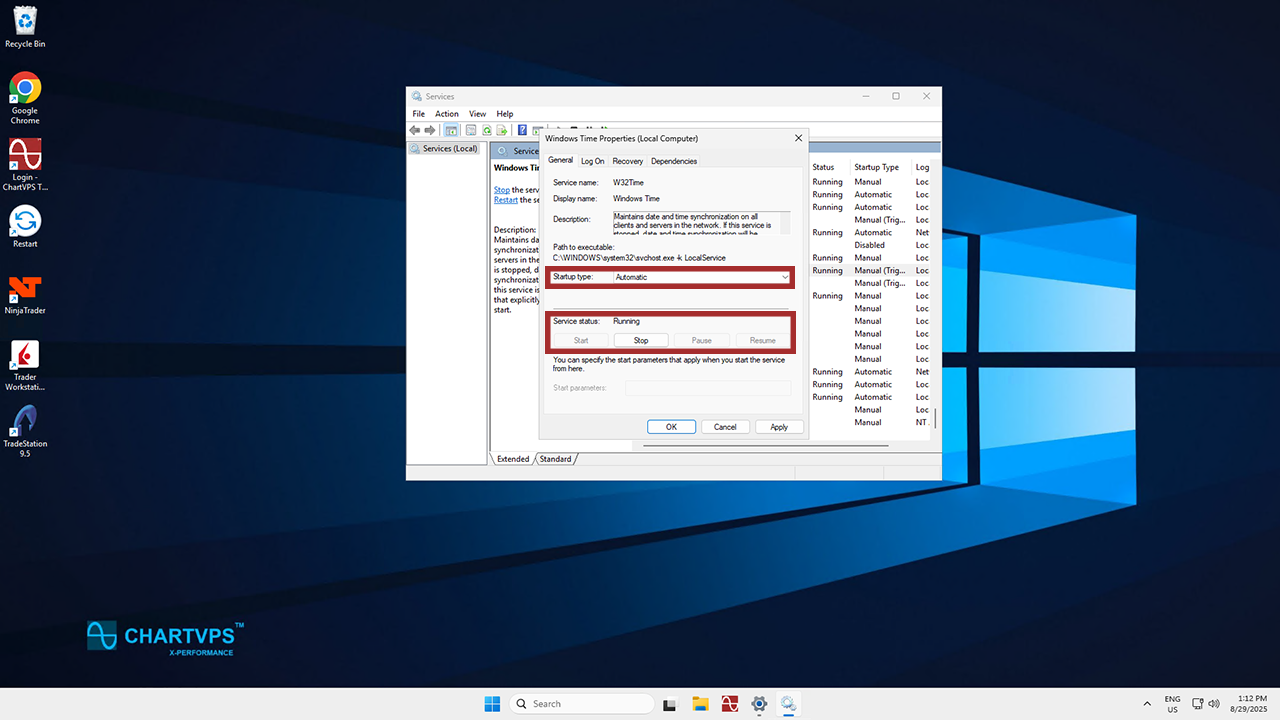
4Check that the Startup type is set to Automatic and the service is running. If it’s not running, all you’ve got to do is click Start to enable it.
Open Windows PowerShell and Disable Cloudbase-init
Sometimes, the cloudbase-init service can interfere with time synchronization. To fix that, just follow these steps:
Tip
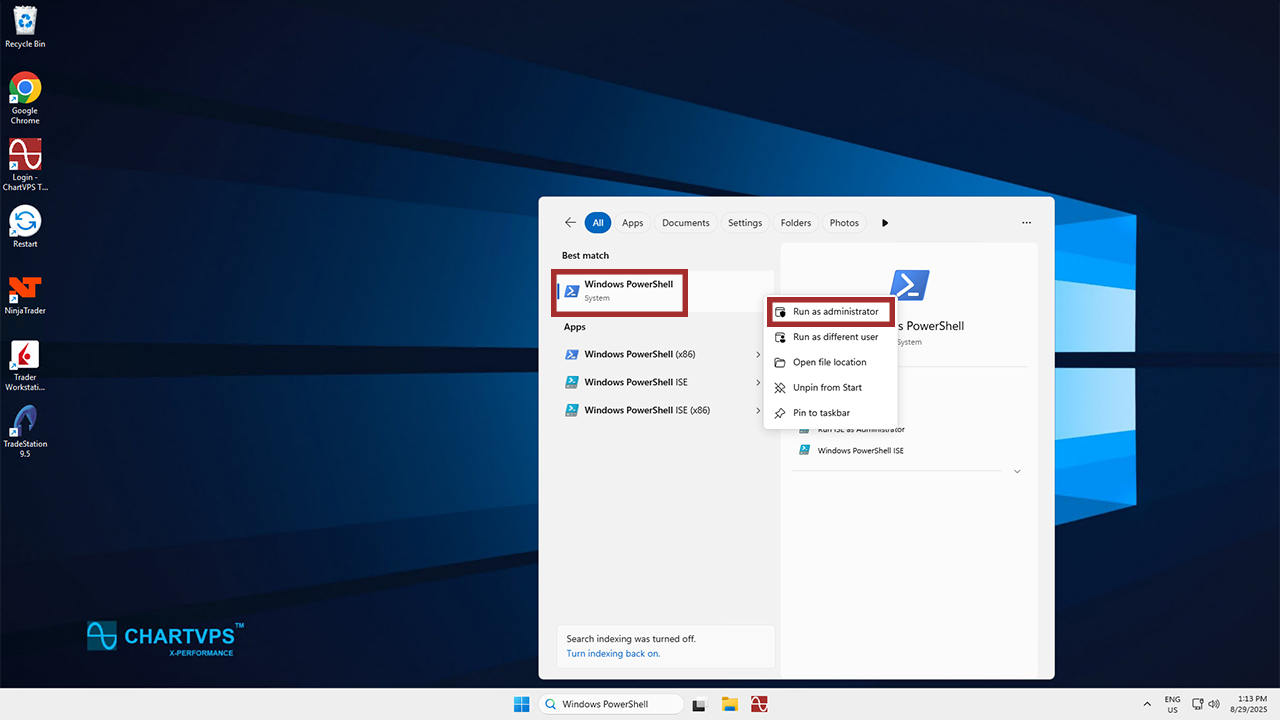
1Time for a different program! Open Windows PowerShell as Administrator.
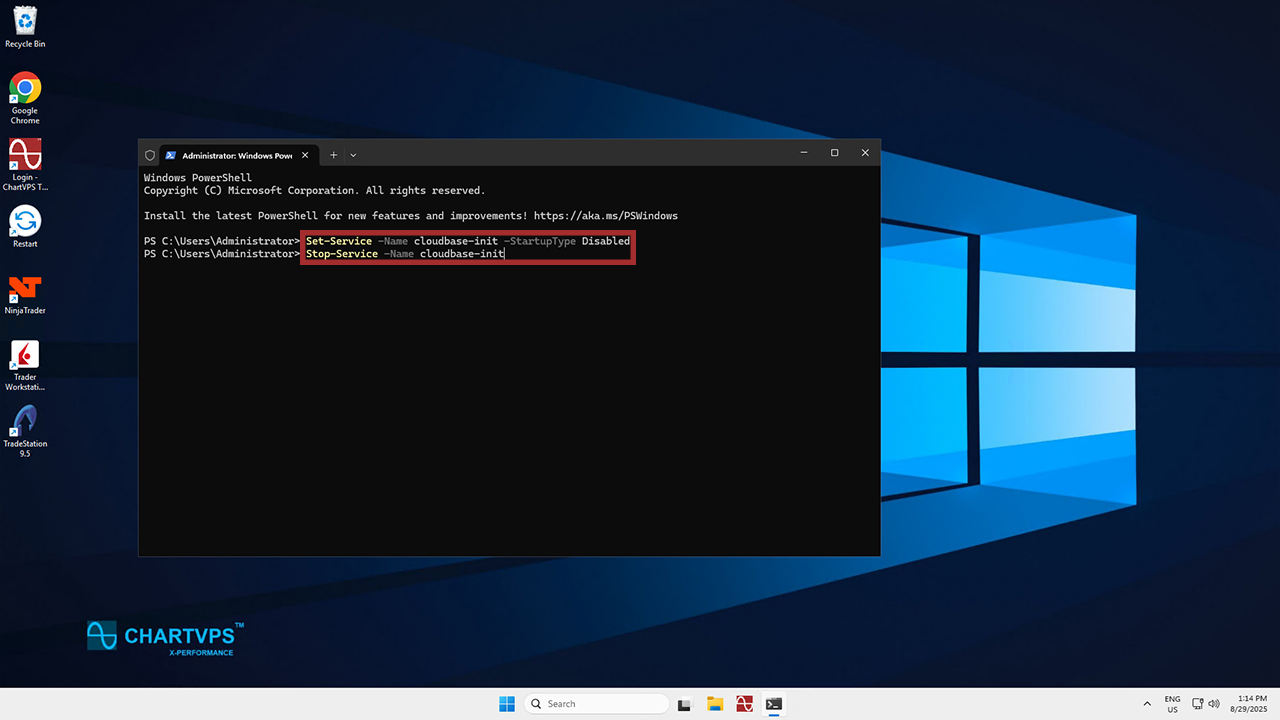
2Copy and paste the following commands, and hit enter:
Set-Service -Name cloudbase-init -StartupType Disabled
Stop-Service -Name cloudbase-init- This disables and stops the cloudbase-init service, which could fix your time syncing issues.
Restart the Server
After making the above changes, it’s always a good idea to restart your server. This’ll make sure everything gets applied properly:
Tip
1To restart your server, hit the Start Menu, navigate to Power, and hit Restart.
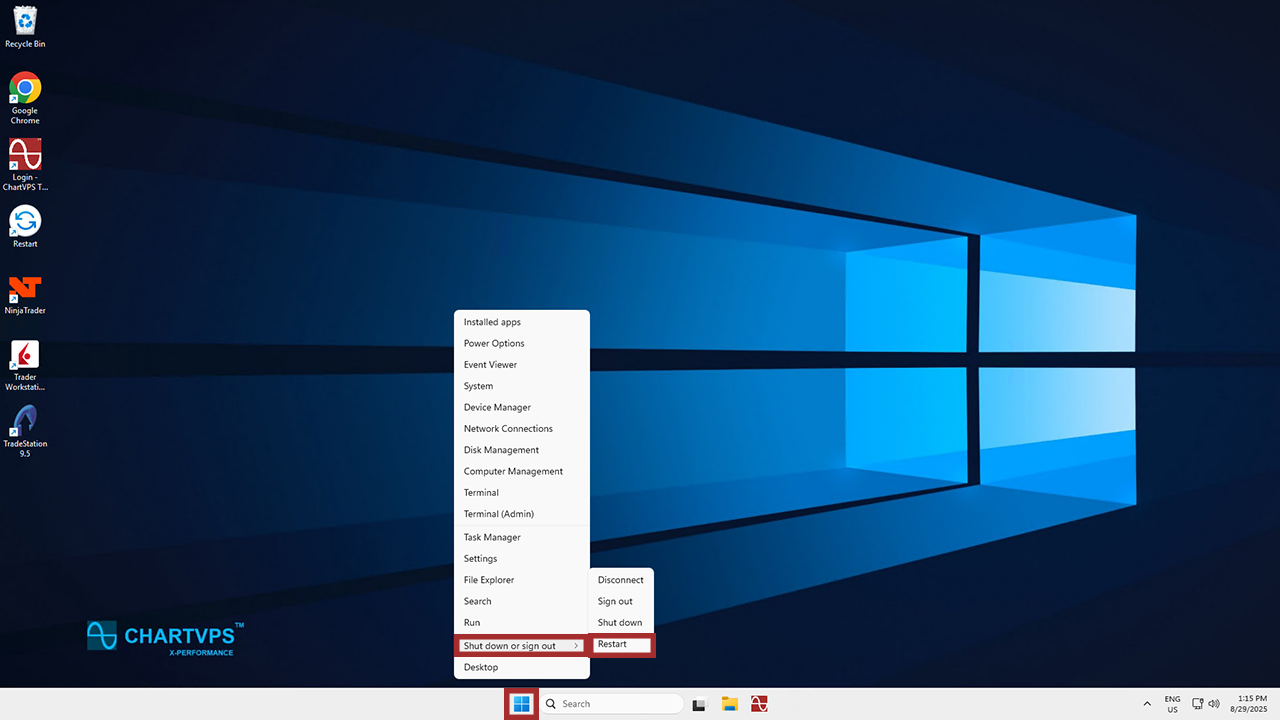
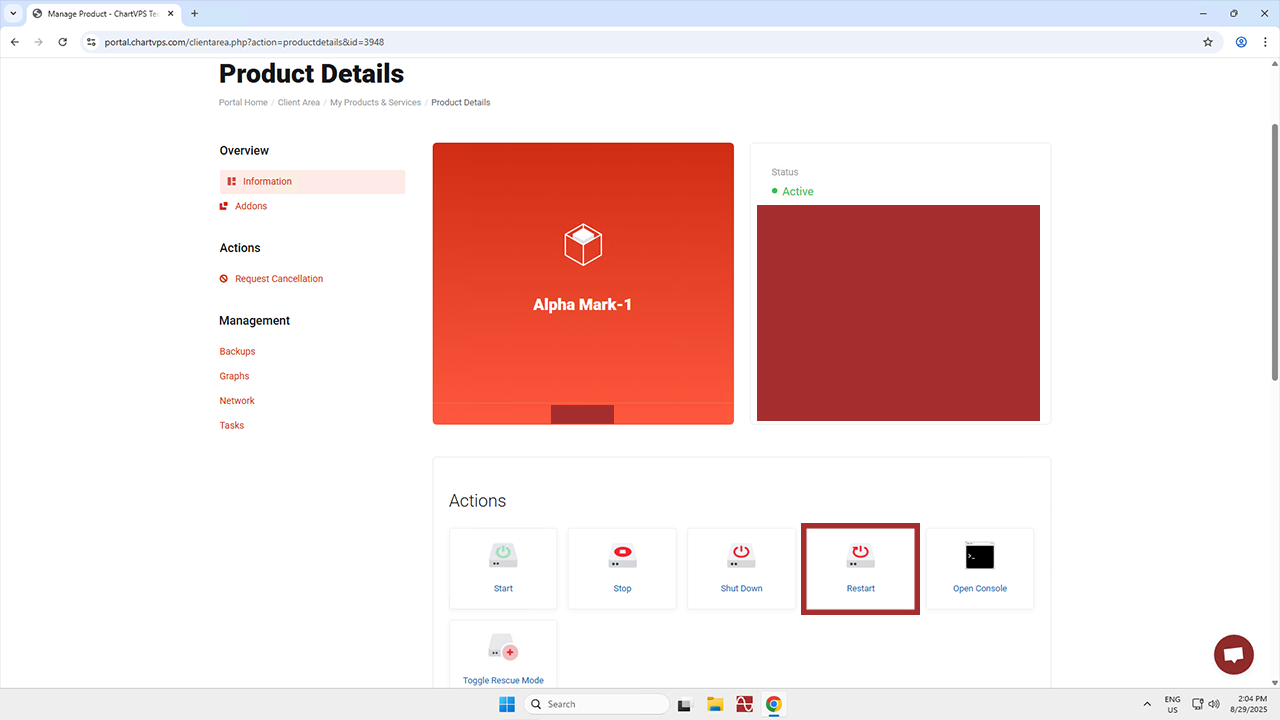
- You can also restart your server from the ChartVPS Portal. Simply log in, select your desired server, and click the Restart button!