
Setting applications to run automatically at startup is very useful, especially for MT4 and MT5 users managing multiple trading terminals. This feature allows all your trading platforms to open automatically when you start your server, saving you time and simplifying your workflow.
Alert
Here’s how to set it up:
- Open Registry Editor:
Press Win + R, type regedit, and hit Enter.
If prompted, confirm User Account Control.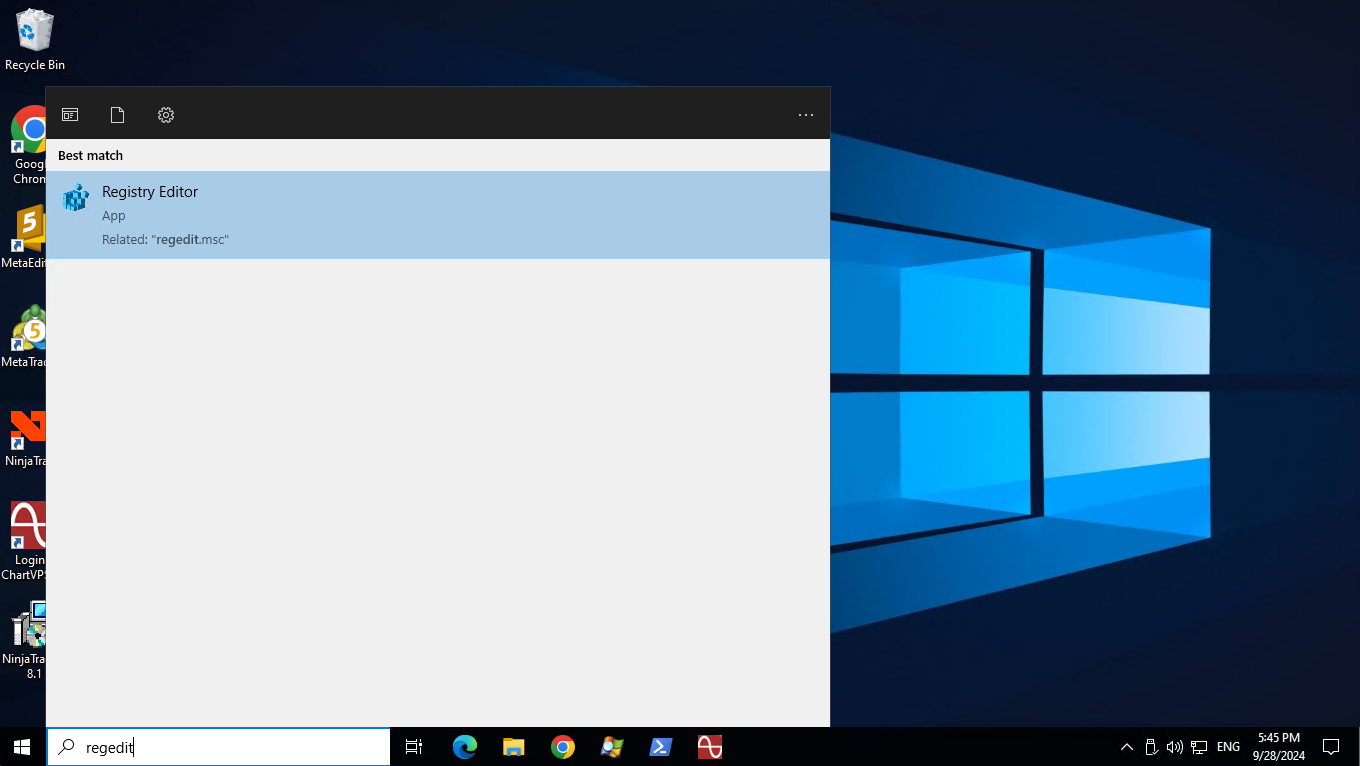
- Navigate to the Run Key:
Go to: HKEY_LOCAL_MACHINE\SOFTWARE\Microsoft\Windows\CurrentVersion\Run
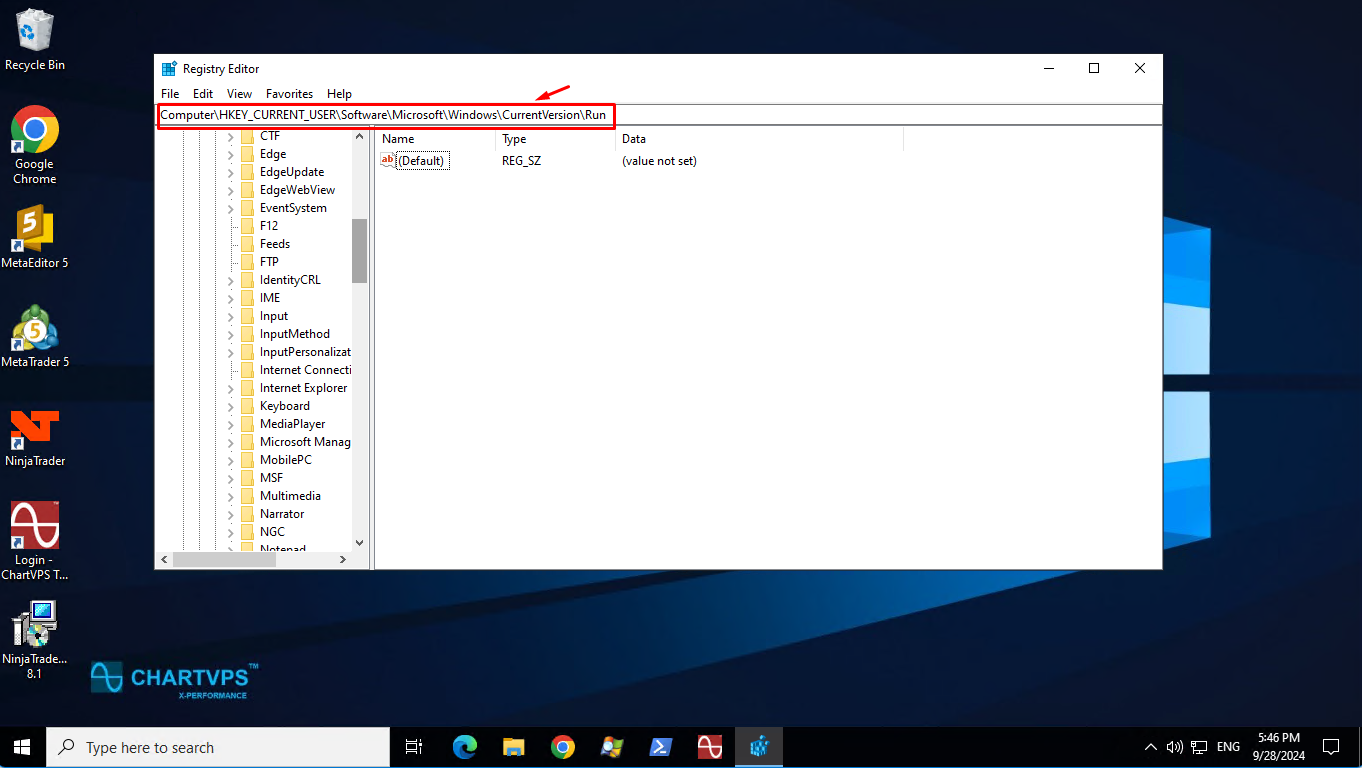
- Create a New String Value:
Right-click in the right pane.
Select New > String Value.
Name it something meaningful, like MyTradingPlatform.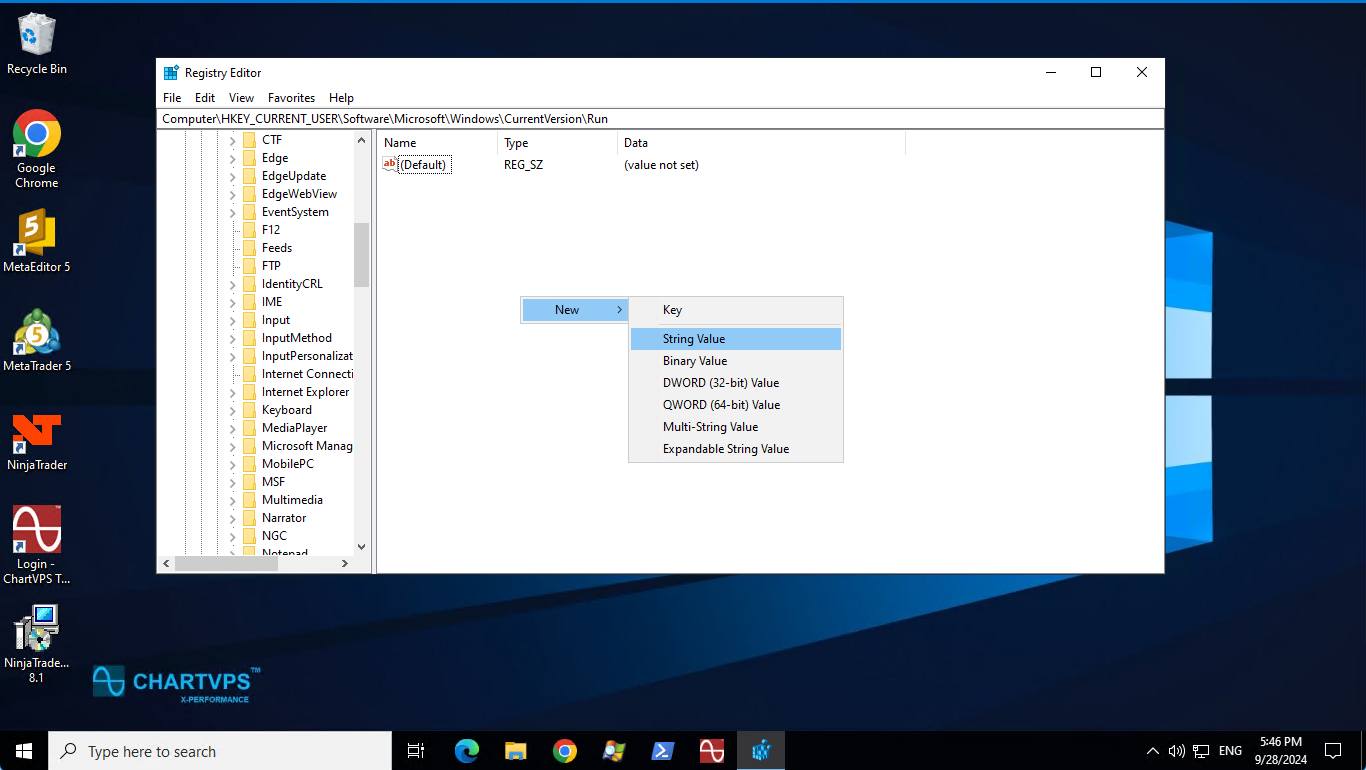
- Set the Value Data:
Double-click the new string value.
In the “Value data” field, enter the full path of the executable. For example:
C:\Program Files\MyTradingPlatform\TradingApp.exe.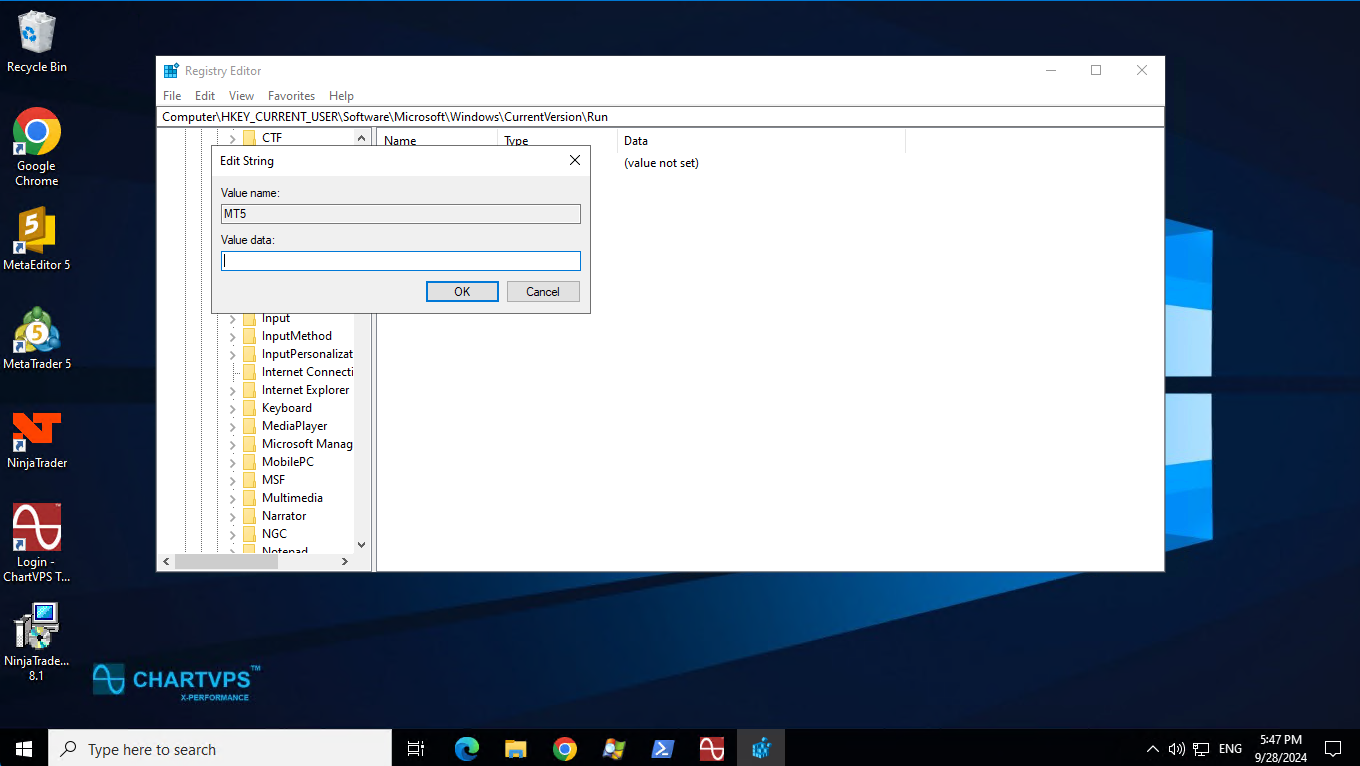
To find the exact path, right-click the shortcut icon on your desktop and select Open file location. Copy the link from the address bar, paste it in “Value data,” and add \terminal64.exe at the end.
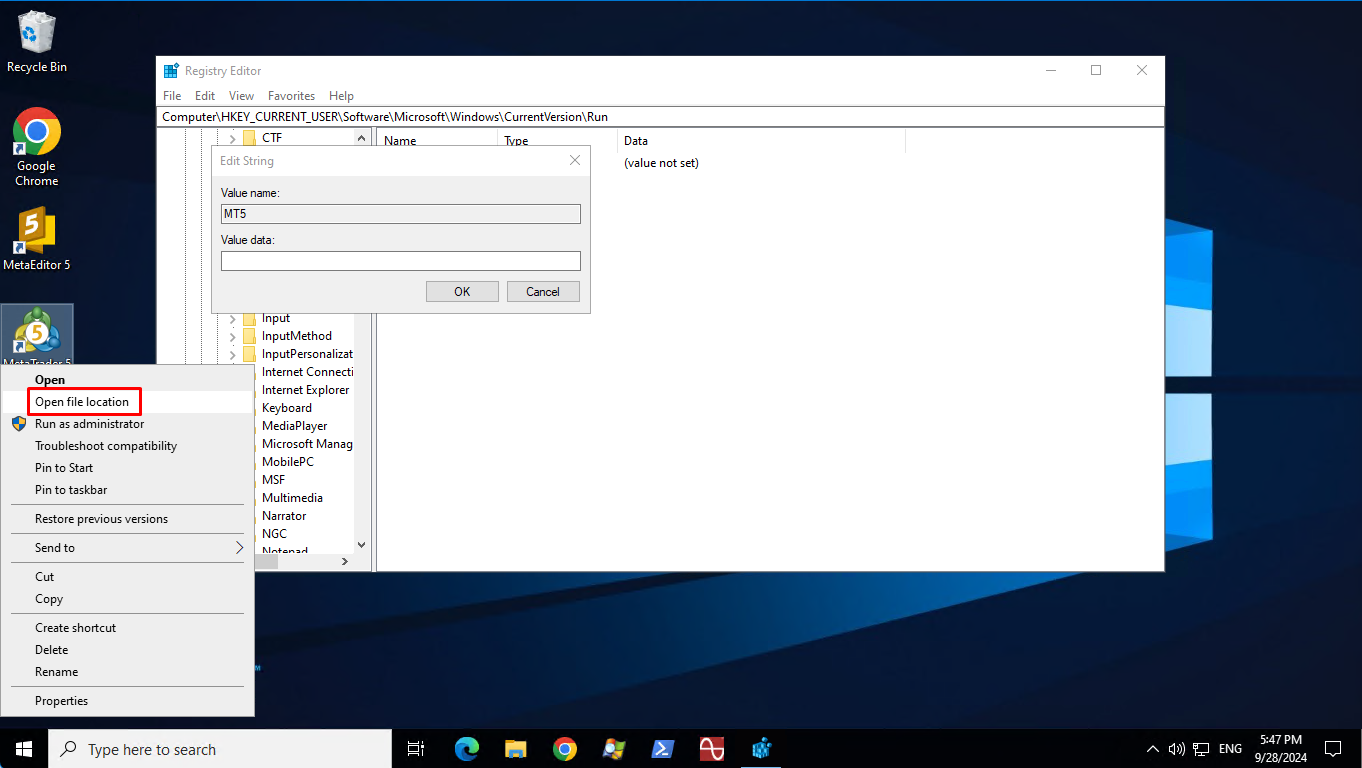
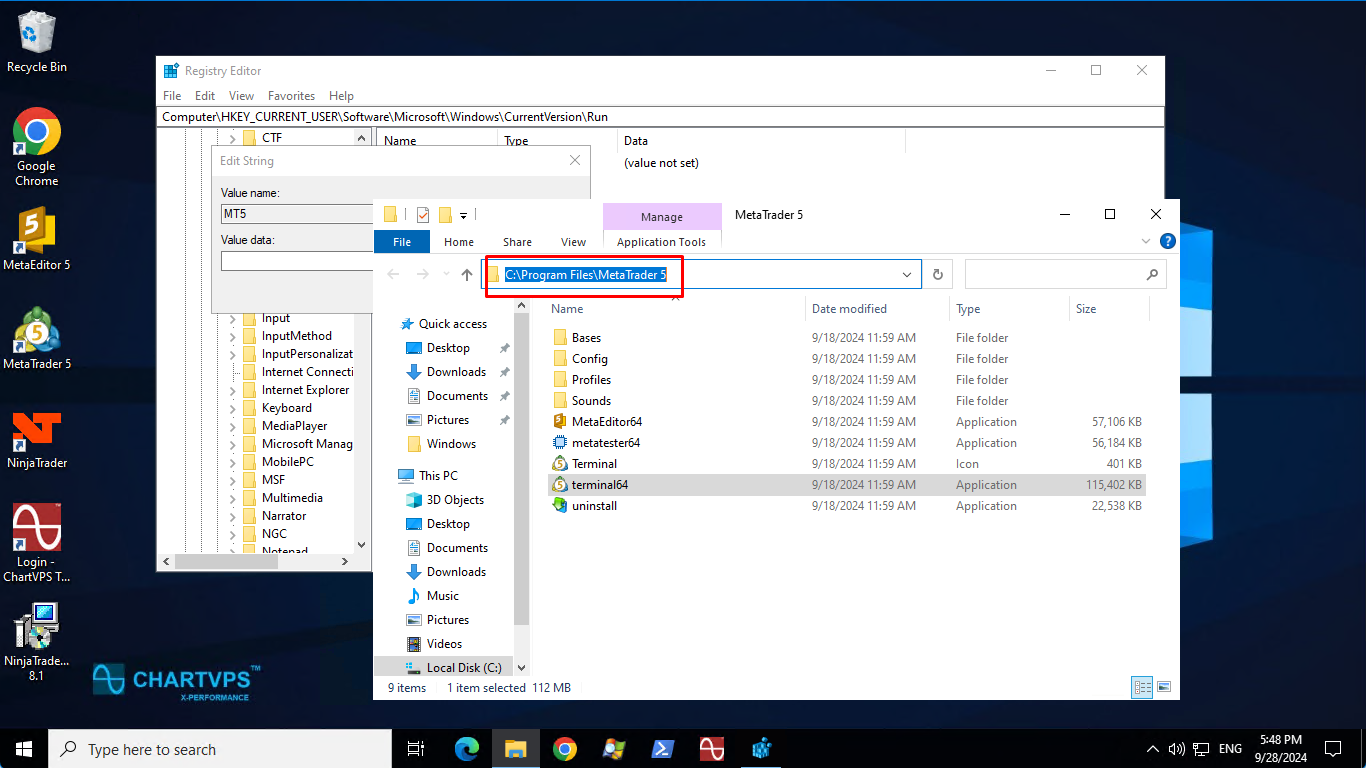
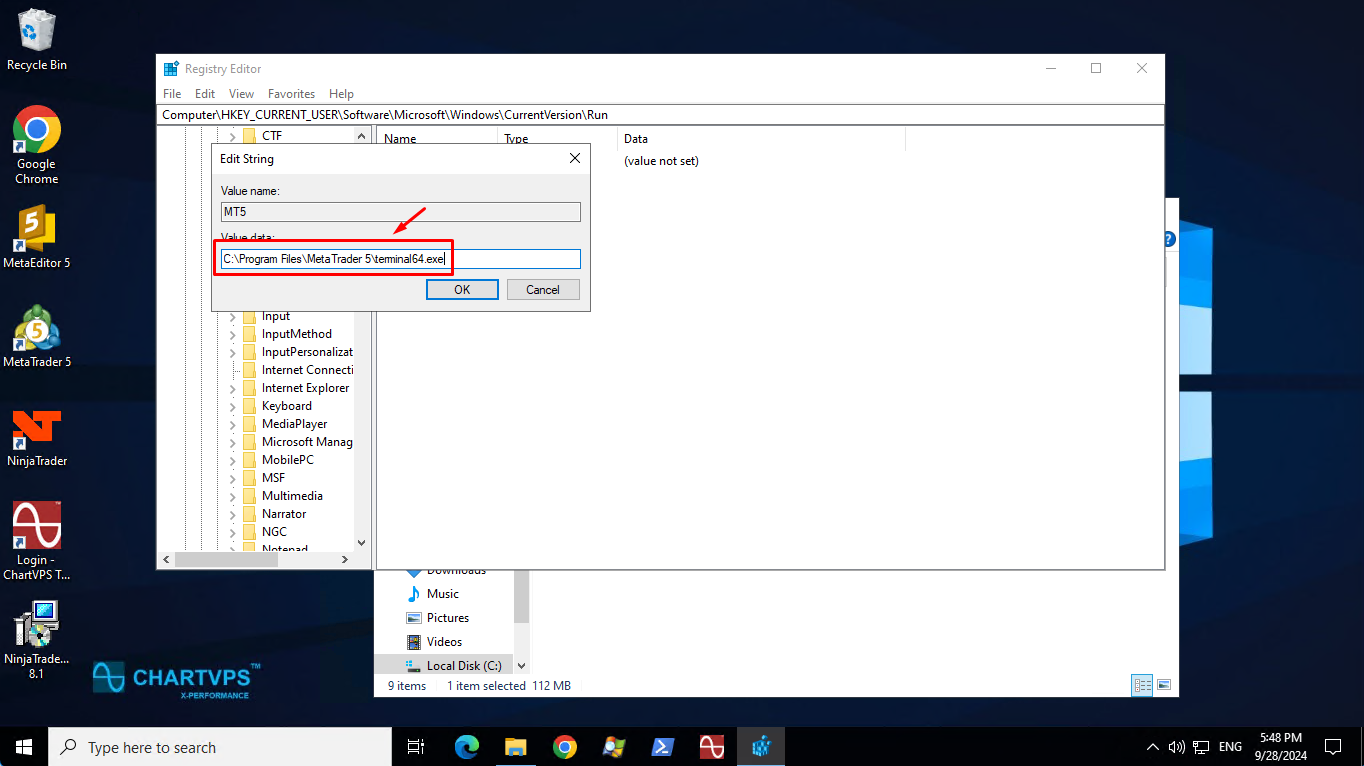
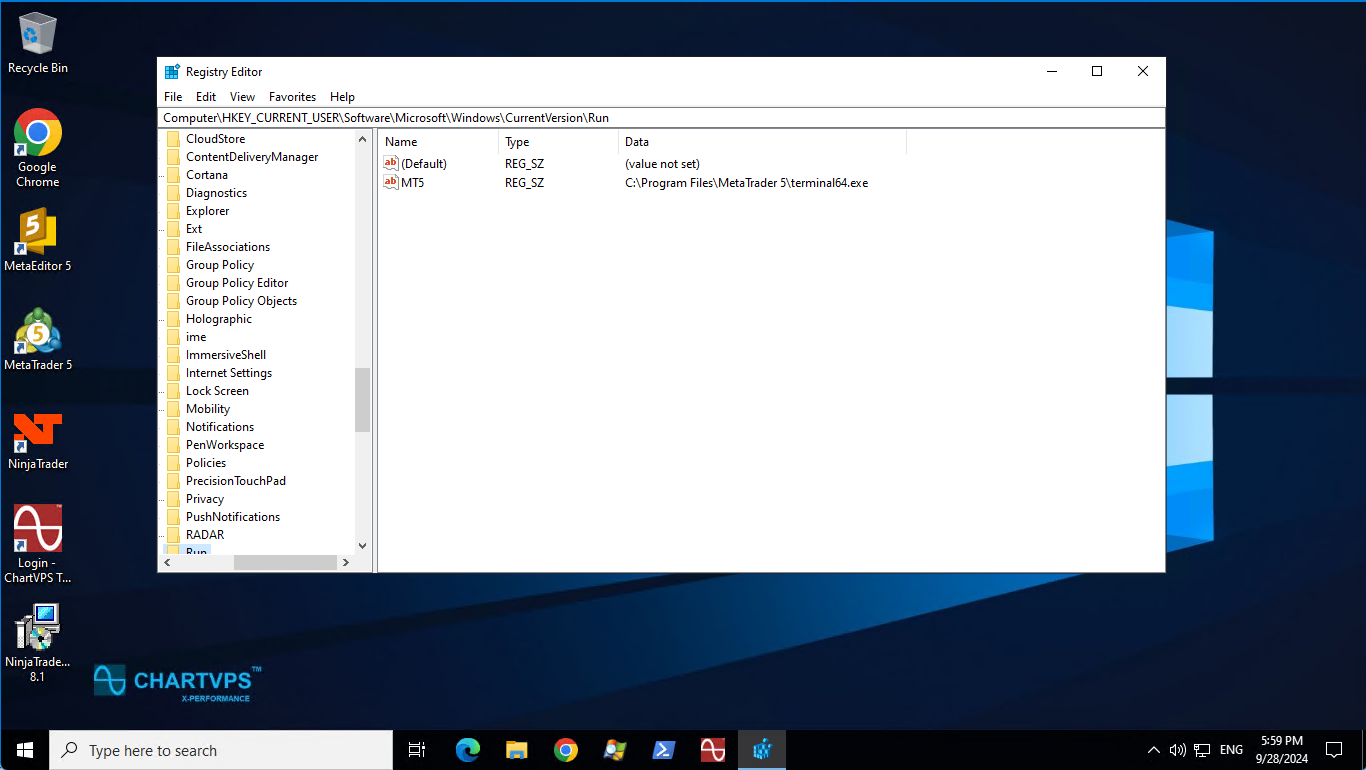
You can repeat these steps for each terminal you want to add.
After adding all terminals, close the Registry Editor and restart your server. When you log in, all terminals will start automatically.
Note
Note: If you have multiple terminals set to run at startup, try to avoid running other tasks until all terminals have loaded to prevent overloading the server.
Success